
Software
Microsoft Teams isn’t just for businesses—it’s transforming classrooms worldwide. Discover how educators leverage this powerful tool to streamline communication, enhance student engagement, and create seamless digital learning environments.
Seamless classroom communication platform
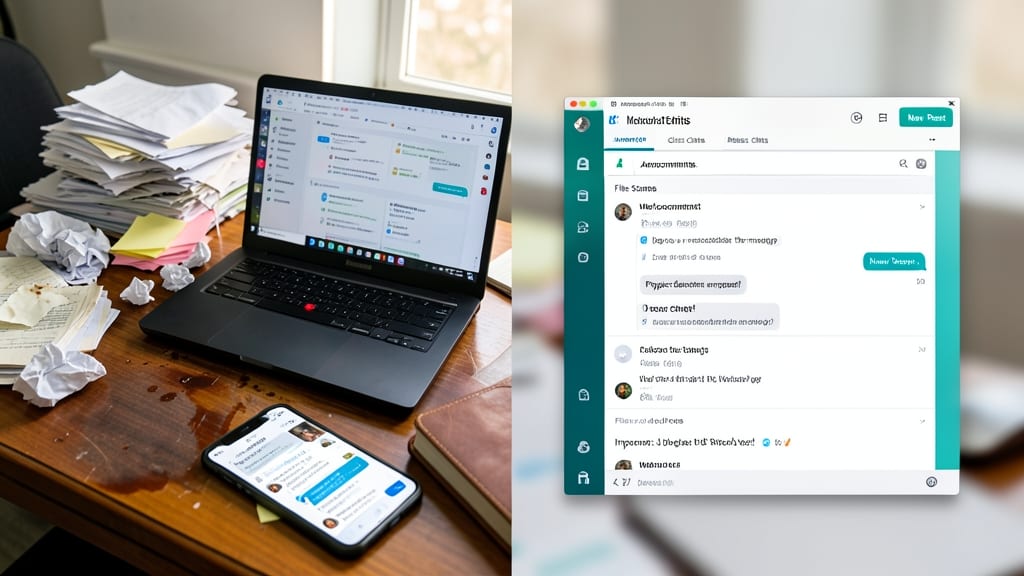
Say goodbye to the chaos of juggling email threads, text messages, and lost notes—Microsoft Teams consolidates everything into one centralized classroom hub. No more hunting through inboxes for that one announcement or waiting for a reply that got buried in a group chat. Instead, teachers post updates, share files, and host discussions in dedicated channels (e.g., #Announcements, #MathHelp), while students ask questions in real time—all without switching apps.
The platform’s persistent chat history means no more “I didn’t see that” excuses, and @mentions ensure urgent messages cut through the noise. For hybrid or remote classes, live captions and video calls turn passive communication into interactive check-ins. Plus, integrated calendars sync deadlines automatically, so students never miss a due date. The result? A single source of truth where every stakeholder stays aligned—teachers, students, and even parents.
This is the game-changer for busy educators balancing in-person and virtual students, or schools transitioning to hybrid models. With zero setup complexity and built-in security, Teams turns disjointed communication into a streamlined, engaging experience—all while keeping sensitive data protected. ✨
Real-time video lessons and screen sharing
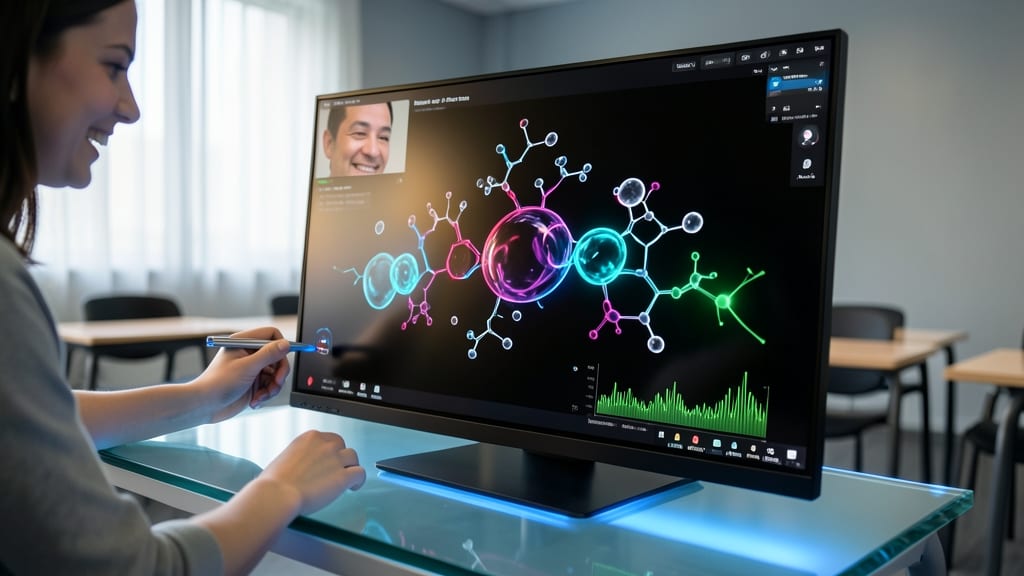
Struggling to explain complex concepts like chemical reactions or geometric proofs through text alone? Microsoft Teams’ real-time video lessons and screen sharing turn abstract ideas into visual, interactive experiences—no whiteboard required.
With 4K@60fps video support, teachers can annotate live documents, share slides, or even demonstrate lab equipment in real time. Built-in polls and reactions let students engage mid-lesson (e.g., voting on the best solution to a math problem), while the whiteboard tool lets you sketch diagrams together. The virtual background feature also keeps classrooms distraction-free during hybrid sessions.
This is the go-to tool for STEM teachers, artists, and lab instructors who need to show rather than tell. Whether it’s a virtual field trip or a step-by-step coding tutorial, Teams makes lessons stick. ⚡
Integrated assignment management system
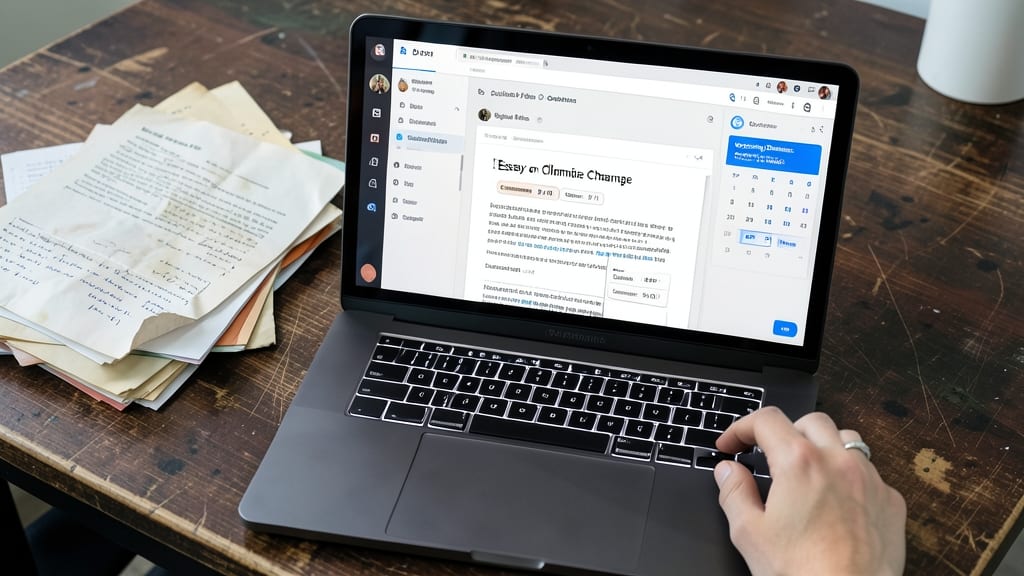
Tired of chasing down missing homework or deciphering illegible handwriting? Microsoft Teams’ integrated assignment system turns the classroom into a paperless workspace—where teachers assign, track, and grade work all in one place.
Create assignments with deadlines, rubrics, and file type restrictions (Word, PDF, or even video submissions), then watch submissions auto-organize in your gradebook. Real-time progress tracking lets you monitor who’s completed work, while inline comments on documents speed up feedback—no more printing or photocopying. Students upload directly from their devices, and lost papers become a thing of the past.
This feature shines brightest for high-volume classes (like AP courses or large lecture halls) where efficiency matters most. It’s also a game-changer for special education, where digital submissions reduce barriers for students with motor or organizational challenges. ✨
Collaborative class notebooks for group work
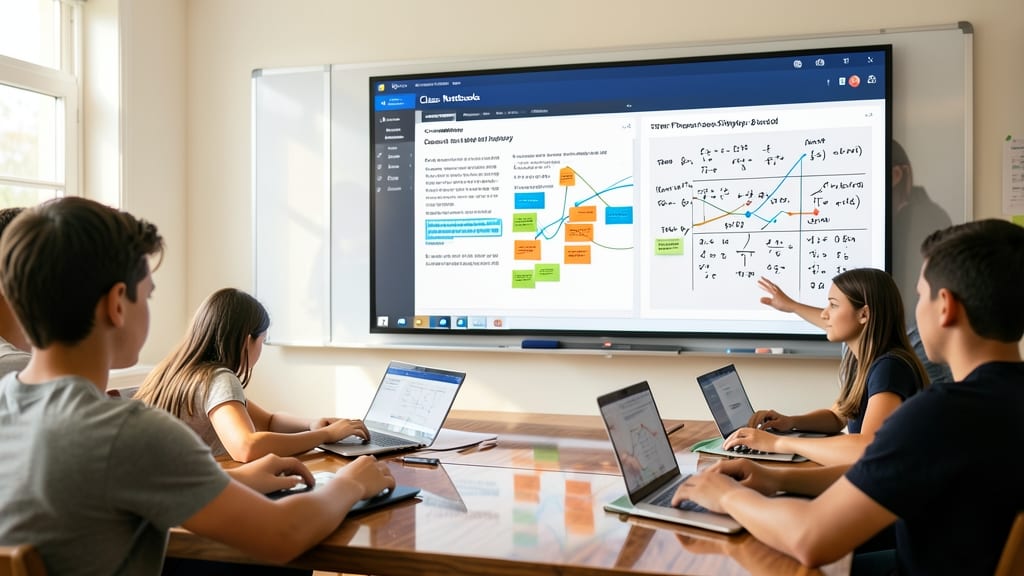
Turn group projects from chaotic to collaborative with Microsoft Teams’ Class Notebooks, designed specifically for educators. This feature transforms shared documents into interactive hubs where students can co-author essays, debate history timelines, or solve STEM problems—all in real time.
The whiteboard tool lets teams sketch diagrams or mind maps together, while version history tracks contributions so no one’s work gets lost. Teachers can even lock sections to guide focus during brainstorming sessions. The integration with Word, PowerPoint, and OneNote ensures all project files stay organized in one place.
Perfect for language arts groups drafting research papers, history classes mapping events, or engineering teams prototyping designs, this tool turns passive collaboration into an active learning experience. ✨
Parent-teacher communication hub
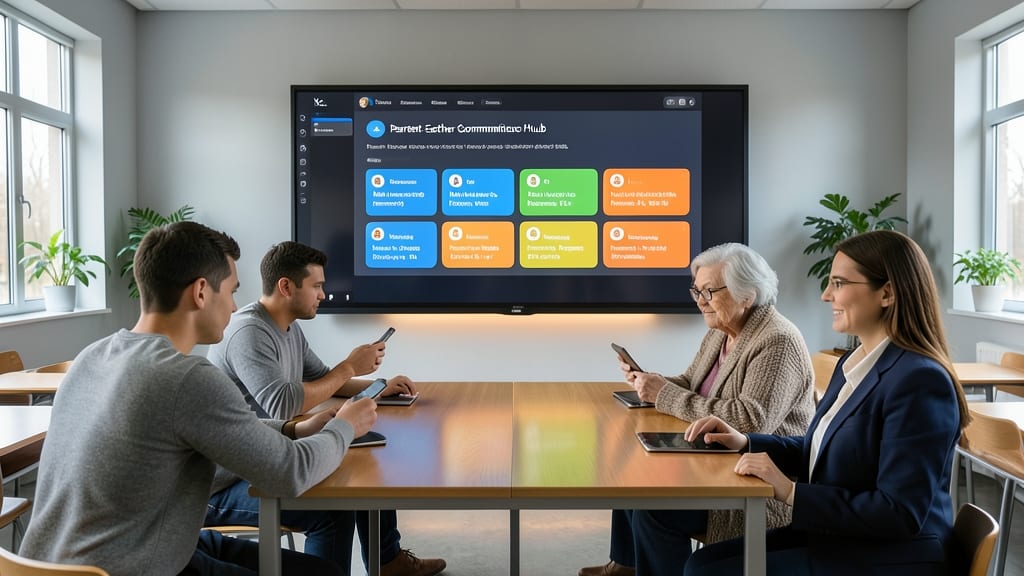
Tired of parents missing critical updates buried in emails or lost in group chats? Microsoft Teams creates a dedicated Parent-Teacher Communication Hub—a centralized space where guardians get real-time updates on assignments, upcoming events, and student progress without the guesswork.
Teachers can pin to a shared channel, use @mentions to flag specific parents, and even share progress reports directly through the platform. The integrated calendar syncs events automatically, while file-sharing lets parents access handouts or permission slips instantly—no more printing or last-minute scrambles.
This feature is a game-changer for schools prioritizing transparency and trust. Busy parents and teachers alike benefit from fewer miscommunications and stronger collaboration, all while keeping sensitive data secure within the school’s Microsoft 365 ecosystem. ✨
Built-in polls and quizzes for instant feedback
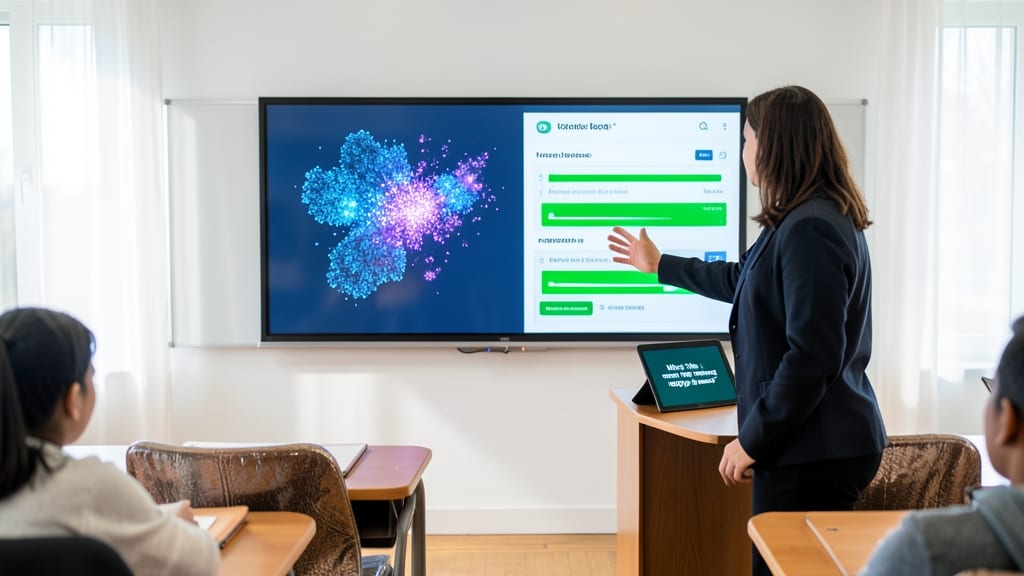
Turn passive listening into active participation with Teams’ built-in polls and quizzes, designed to keep students engaged during lessons. These tools let you create quick assessments in seconds—whether it’s a multiple-choice check for understanding or a real-time word cloud to gauge opinions—all without leaving the classroom.
With customizable question types (including true/false, multiple choice, and ranking), you can tailor assessments to fit any subject. Results appear instantly, letting you adjust pacing or clarify concepts mid-lesson. The insights dashboard even tracks participation rates, so you know who might need extra help. No extra apps or logins required—just click, share, and teach.
Perfect for high-energy subjects like history debates or science experiments, these tools turn lessons into interactive experiences. Even shy students participate when answers stay anonymous. ✨
Secure file sharing and storage

Losing lesson plans to a dead USB drive or scrambling to find last year’s worksheets in a chaotic desk drawer? Microsoft Teams’ cloud-based storage solves that with OneDrive integration, giving teachers a single, searchable hub for all materials—from PowerPoint lectures to PDF worksheets.
With 1TB of storage per user (scalable for schools), files sync automatically across devices, and permissions controls ensure only authorized eyes see sensitive student data. The platform also complies with FERPA and COPPA, so administrators can rest easy knowing data stays protected. Plus, version history lets you recover accidental edits with a few clicks.
Perfect for substitute teachers, department heads, or distance-learning programs—anyone who needs reliable, anywhere access to classroom resources without the risk of lost files or security breaches. ✨
Virtual breakout rooms for small group activities
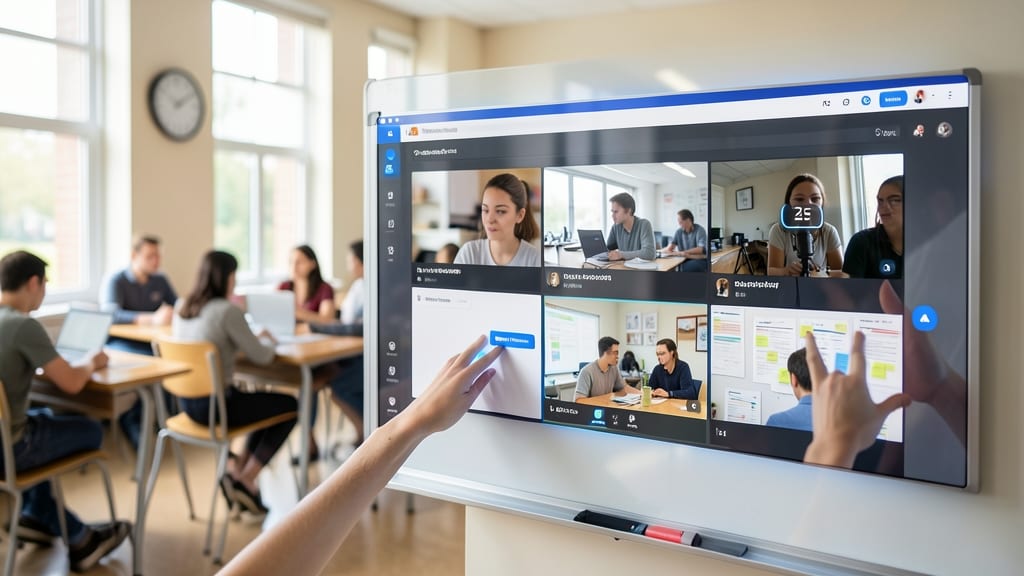
Tired of large lectures where some students get lost in the shuffle? Microsoft Teams’ virtual breakout rooms let you split your class into smaller groups with just a few clicks—perfect for language labs, debate practice, or project-based learning.
With customizable timing (5-60 minutes) and automatic rejoining, you can assign students to groups based on skill level, language proficiency, or project roles. The shared whiteboard and file-sharing features keep discussions focused, while the teacher retains full control to monitor progress or jump in if needed.
This feature shines in world language classes (e.g., Spanish conversation groups) or STEM projects where collaboration is key. It’s the digital equivalent of breaking into discussion circles—but with less paper and more flexibility. ✨
Accessibility features for all learners
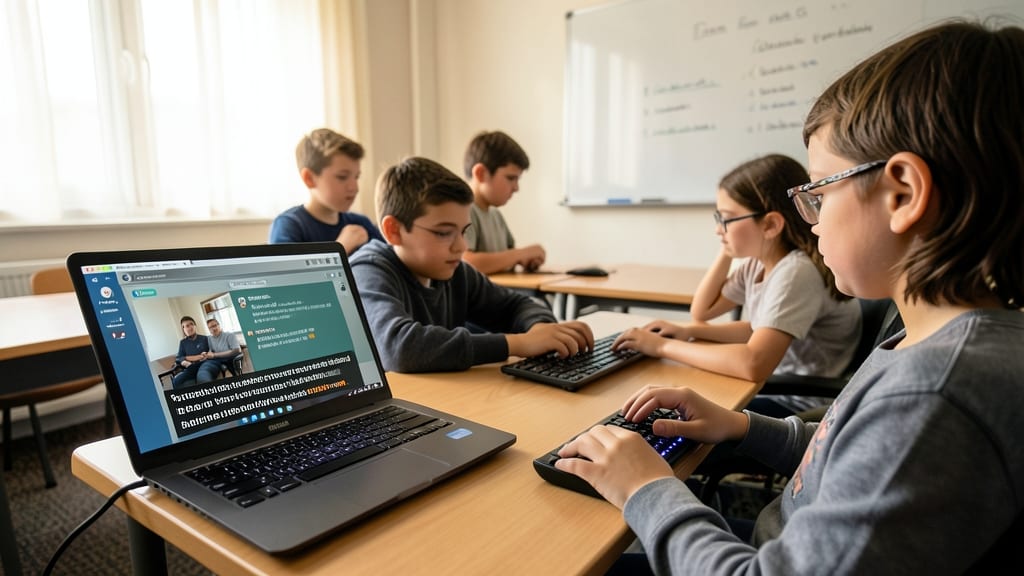
Every student deserves to fully engage in learning—regardless of ability. Microsoft Teams removes barriers with built-in screen readers (like JAWS and NVDA support) and real-time captions that auto-generate subtitles in over 40 languages, making video lessons and discussions inclusive for students with hearing impairments or visual challenges.
The platform’s customizable interface lets students adjust text size, contrast, and even keyboard shortcuts to suit their needs. Teachers can also pin important announcements with high-visibility alerts for students who rely on visual cues. With WCAG 2.1 AA compliance, Teams ensures digital accessibility meets global standards without extra tools or workarounds.
This isn’t just about compliance—it’s about creating a truly equitable classroom where every voice is heard. Whether for students with dyslexia, mobility limitations, or sensory processing needs, Teams’ accessibility tools help level the playing field. ✨
Cost-effective integration with Microsoft 365
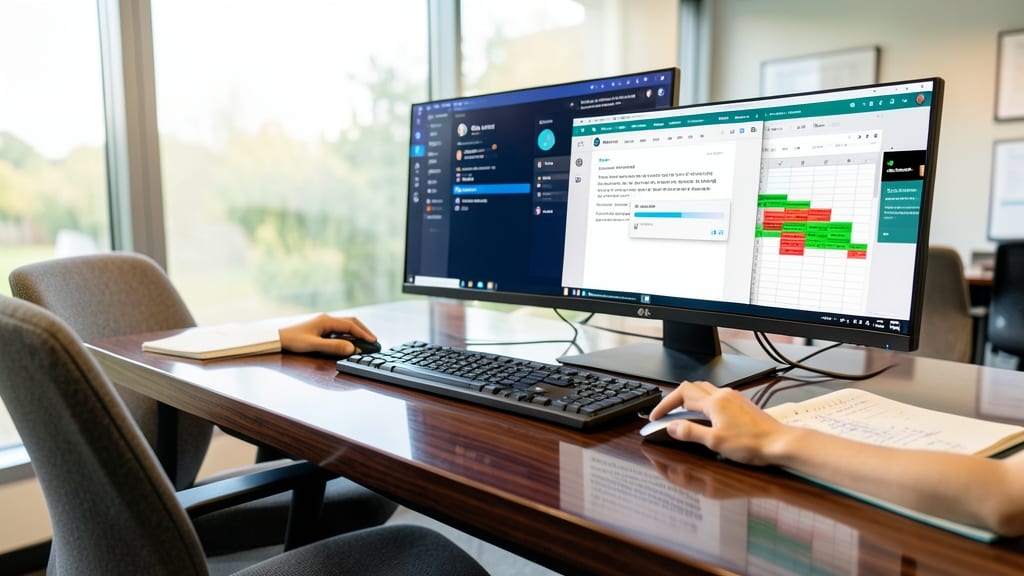
Most schools already pay for Microsoft 365, so adding Microsoft Teams feels like getting a premium upgrade for free. The deep integration between Teams and tools like Word, Excel, and PowerPoint means teachers can create assignments in Word, embed them directly into Teams, and track progress—all without switching apps.
With OneDrive for Business integration, lesson plans, rubrics, and multimedia files sync automatically across devices. Students edit PowerPoint presentations or Excel spreadsheets in real time during group projects, while teachers provide feedback using familiar Office tools. This zero-configuration workflow cuts down on training time and tech headaches.
This makes Teams the smart choice for schools on tight budgets—no extra licenses needed, just instant productivity gains. 💻