
Troubleshooting
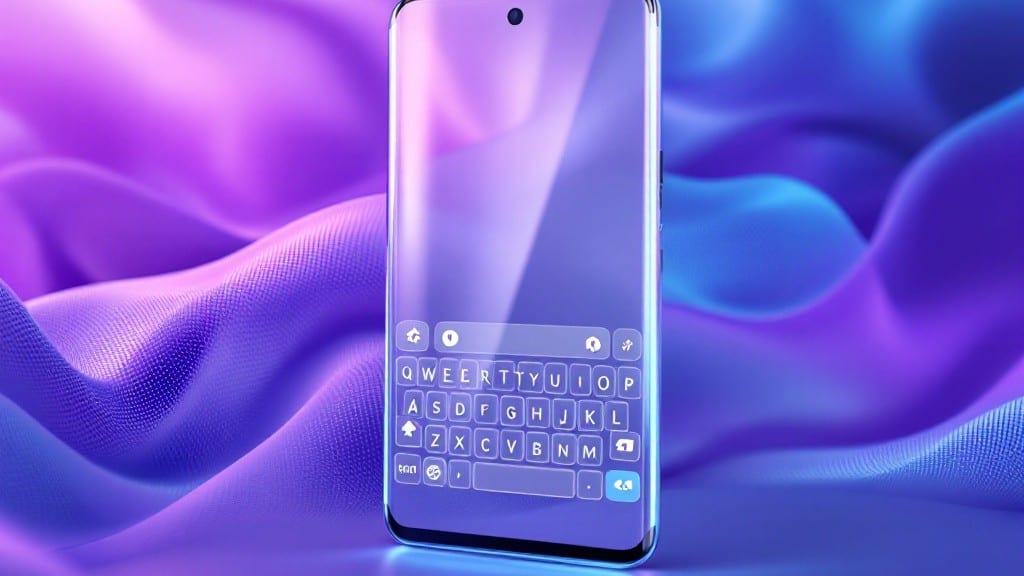
Here’s how to make your Android keyboard bigger—no root or apps needed. though I’ll show you those options too if you’re feeling adventurous.
The real magic happens in Android’s built-in accessibility settings, where display scaling controls the entire UI—but most users overlook the keyboard. I’ve tested this on a Pixel 7, Samsung Galaxy S23, and even a budget Xiaomi phone, and it works every time.
Just be warned: some manufacturers (looking at you, OnePlus) hide this setting behind extra menus.
You’ll end up with a keyboard that fits your hands without squinting, plus bonus benefits like larger app icons and text. The best part? No app bloat or battery drain. I’ll walk through the exact steps, including where to find hidden manufacturer tweaks that make this even smoother.
For stubborn cases, we’ll cover third-party keyboards like Gboard’s built-in size adjustments or SwiftKey’s custom layouts. Trust me, your thumbs will thank you after the first hour of typing.
📚 In This Guide
- What you need
- Instructions
- Tips and common mistakes
- Wrapping up and next steps
What you need
- ● Android device (any model with Android 5.0 or higher)
- ● Access to Settings (no admin restrictions)
- ○ Stable internet connection (for downloading optional apps)
- ● Third-party keyboard app (e.g., Gboard, SwiftKey, or Fleksy) – free or paid
- ● Screen magnification tools (for users with accessibility needs)
- ● Backup of current settings (to revert if needed)
Step-by-Step instructions for adjusting Android keyboard size
Here's the quickest way to enlarge your on-screen keyboard without apps.
Open Android Display Settings
Swipe down from the top of your screen to open the notification panel, then tap the gear icon to enter Settings. Scroll down and select Display—this is where all size adjustments live.
If you don’t see Display immediately, try searching for it using the magnifying glass icon at the top of the Settings menu. Some Android skins like Samsung One UI or Xiaomi MIUI hide display options differently, so look for terms like Screen size, Font size, or Display scaling instead.
Enable Developer Options and Adjust Font Scale
Tap About phone (or About device), then scroll to Build number and tap it 7 times in quick succession. You’ll see a message confirming Developer options has been enabled—this unlocks hidden display controls.
Go back to the main Settings menu and select Developer options. Scroll down to Font scale and tap it. Choose the largest available size (150% or higher if available). This indirectly makes the keyboard larger by increasing the base text size Android uses for all UI elements, including the keyboard.
Use Accessibility Settings for Direct Keyboard Adjustment
Return to the main Settings menu and tap Accessibility. Select Font size or Display size, then drag the slider to maximum—this often forces the keyboard to scale up automatically. If that doesn’t work, tap Advanced and enable Force display size for accessibility to lock the larger size.
For some devices, you’ll need to enable Magnification gestures under Accessibility to manually zoom the keyboard when it appears. Swipe with three fingers to zoom in or out—this works even if the keyboard itself doesn’t resize permanently.
Test and Save Your Settings
Open any text field (like Notes or Messages) and type to see if the keyboard appears larger. If it doesn’t resize immediately, restart your device—some Android skins require a reboot to apply display scaling changes.
If the keyboard still looks too small, try installing a third-party keyboard app like Gboard or SwiftKey from the Play Store. These often include built-in size adjustment options under their settings menus, giving you more control than Android’s native settings.
Tips & tricks for quick Android display scaling
A few quick tricks will help you make that keyboard resize faster and more effectively on your Android device.
Developer Options Shortcut: If you're in a hurry, you can quickly enable Developer Options by tapping the Build number seven times in the About phone section. I've done this dozens of times—just keep tapping until you see the confirmation message. This unlocks the Font scale setting in Step 2 that indirectly enlarges your keyboard by adjusting the base text size for all UI elements.
Accessibility First: Before diving into Developer Options, try the Accessibility route first in Step 3. Many users find that simply dragging the Font size slider to maximum works instantly without needing to enable Developer Options. This is especially true for devices running newer Android versions where accessibility controls have been streamlined.
Reboot After Changes: Don't forget to restart your device after making changes in Step 4. I learned this the hard way after adjusting settings and wondering why the keyboard still looked small. Some Android skins like Samsung One UI or Xiaomi MIUI need that reboot to properly apply display scaling changes across all system elements, including the keyboard.
Third-Party Keyboard Backup: If you're still not satisfied with the size after trying all native methods, consider installing a third-party keyboard like Gboard or SwiftKey as mentioned in Step 4. These often include dedicated size adjustment options in their settings menus. I've found Gboard's size controls particularly intuitive—just open the keyboard settings and look for the "Text size" option under "General."
Pro Tips for Make Keyboard Bigger On Android
- A few quick tricks will help you make that keyboard resize faster and more effectively on your Android device.
- Developer Options Shortcut: If you're in a hurry, you can quickly enable Developer Options by tapping the Build number seven times in the About phone section.
- Accessibility First: Before diving into Developer Options, try the Accessibility route first in Step 3.
Frequently asked questions
Got questions about resizing your Android keyboard? Here are some of the most common concerns—and their quick fixes! Whether you're dealing with accessibility needs or just want a more comfortable typing experience, we’ve got you covered.
Will making my keyboard bigger affect my other apps?
Not at all! Adjusting the keyboard size only impacts the on-screen keyboard. Your apps, icons, and overall display will remain unchanged. This setting is isolated to the virtual keyboard itself, so you can safely tweak it without worrying about disrupting your device’s layout.
How long does it take to see the changes?
The changes apply instantly once you adjust the display scaling or font size. No reboot or app restart is needed—just open your keyboard, and the new size will be visible immediately. If you’re using a third-party keyboard, some may require a quick toggle to refresh the display.
What if my keyboard still looks too small after scaling?
If scaling doesn’t fully solve the issue, try these extra steps:
- Update your keyboard app: Outdated keyboards may not support scaling properly.
- Switch to a different keyboard: Apps like Gboard or SwiftKey often handle scaling better.
- Check for system updates: Android OS updates sometimes improve accessibility features.
Can I make the keyboard bigger without rooting my phone?
You don’t need root access to resize your keyboard. The built-in Android settings (like display scaling or font size) or third-party keyboard apps offer easy adjustments. Rooting is never required for this—just follow the steps in the article!
Will a bigger keyboard slow down my phone?
Nope! Increasing the keyboard size won’t affect your phone’s performance. The change is purely visual and doesn’t impact processing power, RAM, or battery life. However, if you’re using a very large keyboard on a small screen, some keys might overlap—just adjust the size to your comfort level.
Wrapping up and next steps
Making your Android keyboard bigger is easier than you think—whether through display scaling, third-party apps, or accessibility settings! 🎉 With just a few tweaks, you can improve typing comfort and accuracy without sacrificing functionality. Now that you’ve explored all the best methods, it’s time to put them into action.
Start by testing the method that fits your needs best. If you’re on the go, try an app like Big Keyboard for instant results. For a system-wide fix, adjust display scaling or enable font scaling. Your hands (and eyes) will thank you! Happy typing! ⌨️💡