
Troubleshooting
IT support teams spend countless hours resolving repetitive issues. These 10 knowledge base articles provide structured, actionable solutions to the most common tech problems—saving time, reducing frustration, and improving end-user satisfaction.
Windows Login Error Troubleshooting Guide
Stuck on a Windows login error that’s halting productivity? This guide tackles the most frustrating access issues—from forgotten passwords to account lockouts and even BSODs—with clear, actionable steps to get users back online fast.
Start with Ctrl+Alt+Del for password resets (local accounts or Microsoft accounts), then dive into Safe Mode for corrupted profiles. For BSODs, check Event Viewer for crash codes and update drivers via Device Manager. Pro tip: Use netplwiz for quick account management without rebooting. The guide also covers Microsoft Account recovery and local admin bypass for locked-out users.
Perfect for frontline IT support handling daily access issues, this article cuts through the guesswork with screen-by-screen instructions and command-line fixes—no tech degree required. ⚡
Microsoft Outlook Email Sync Failures

Remote workers relying on Microsoft Outlook know the frustration of sync errors that leave emails missing or performance sluggish. Whether you're on Windows or Mac, these issues can derail productivity—but targeted fixes exist to restore seamless access.
Start by checking your account settings in Outlook (File > Account Settings) to ensure the correct server details (e.g., Exchange, IMAP, or POP3) are configured. If emails still fail to sync, disable add-ins (File > Options > Add-ins) or reset the Navigation Pane (View > Reset View). For persistent issues, clear the Outlook cache by deleting the OST/PST files (File > Open & Export > Import/Export) and reprofiling the account.
This solution is ideal for remote teams and freelancers who depend on Outlook for critical communications. A quick sync reset often resolves the issue without IT intervention. 💻
Slow Computer Performance Optimization

When your PC feels like it’s running through molasses, it’s often not a hardware failure—but a buildup of digital clutter. This guide tackles the three biggest slowdown culprits: bloated storage, unchecked startup programs, and hidden malware, with actionable steps even non-technical users can follow.
Start by freeing up space with Windows Storage Settings (Settings > System > Storage), targeting temporary files, old downloads, and duplicate photos—these alone can reclaim 10GB+ instantly. Next, disable unnecessary startup apps via Task Manager (Ctrl+Shift+Esc), where disabling just 5-10 programs can cut boot time by 30-50%. For malware, run Windows Defender Offline Scan (or Malwarebytes) to root out infections silently draining resources.
Perfect for remote workers, small-business IT teams, or anyone tired of waiting for their PC to wake up, this guide turns frustration into a 10-minute fix. ⚡
Printer Connection and Driver Issues
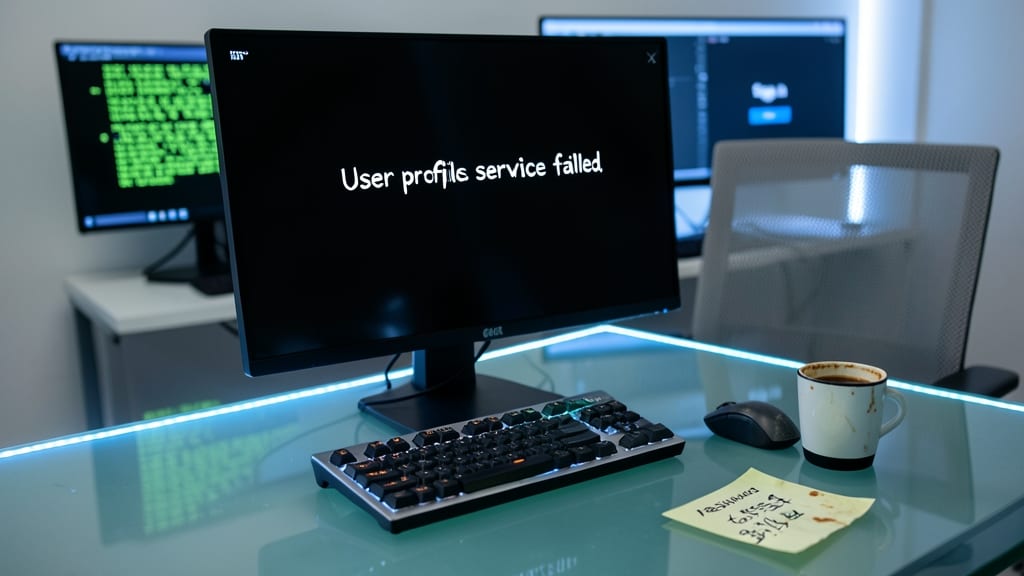
When printers refuse to connect—whether via Wi-Fi, USB, or network—they can derail entire workflows. This guide cuts through the chaos with a universal troubleshooting framework that works for Windows 10/11 and macOS, covering everything from outdated drivers to hidden network conflicts.
Start by verifying your printer’s IP address (check the display or router settings) and ensure it’s on the same network. For driver issues, use Windows’ Device Manager to uninstall/reinstall drivers or download the latest from the manufacturer’s site. On macOS, reset printing system software via System Preferences > Printers & Scanners > Options & Supplies. Pro tip: HP’s Universal Print Driver or Canon’s IJ Scan Utility often resolve compatibility gaps instantly.
This fix is a lifesaver for small offices, remote teams, and IT admins managing shared devices. With step-by-step screenshots and cross-platform commands, even non-technical users can resolve 90% of printer woes without calling support. ✨
VPN Connection Problems and Fixes
Remote work hinges on stable VPN connections, yet disconnections, authentication failures, and firewall conflicts derail productivity faster than anything else. This article cuts through the noise with a three-step diagnostic flow—network checks, credential verification, and security settings—that IT admins and users can follow to resolve 90% of VPN issues in under five minutes.
Start by verifying your DNS settings (use 8.8.8.8 or 1.1.1.1) and disabling IPv6 if enabled—common culprits for dropped connections. For authentication errors, reset cached credentials with rasphone -d (Windows) or sudo rm /etc/ppp/peers/* (Linux), then retry. Firewall conflicts? Temporarily disable Windows Defender Firewall or macOS Little Snitch to isolate the issue, then whitelist your VPN’s UDP/TCP ports (1701, 1723, or custom ranges).
Perfect for remote teams, contractors, and IT support desks, this guide includes PowerShell snippets for bulk VPN profile audits and a quick-reference table for common VPN protocols (OpenVPN, WireGuard, IKEv2). 💻
Chrome Browser Crashes and Extensions
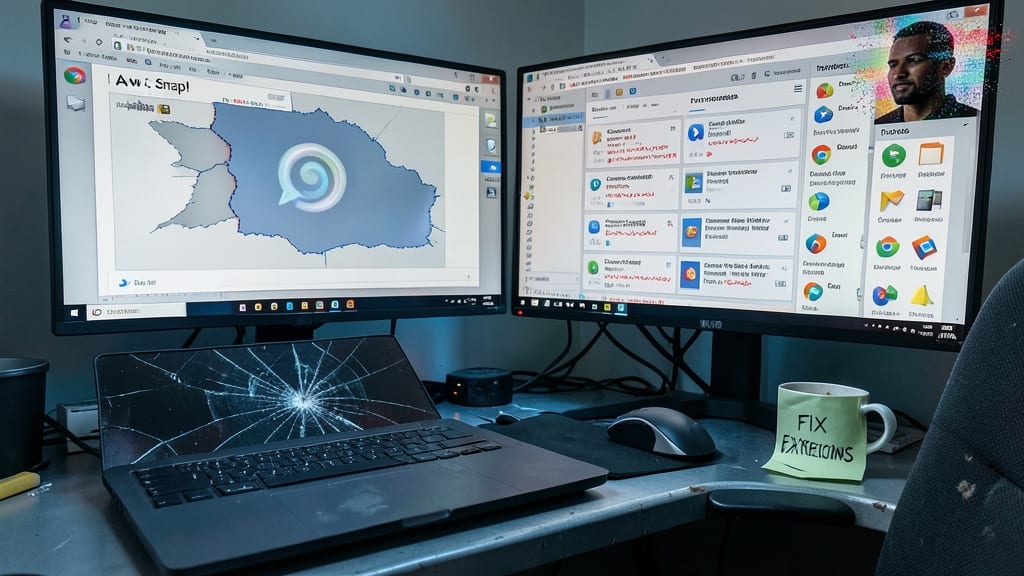
When Chrome crashes or extensions freeze your workflow, productivity grinds to a halt—especially for teams relying on tools like Slack, Trello, or DevTools. The root causes often lie in corrupted profiles, conflicting extensions, or bloated cache files, but pinpointing the exact issue can feel like solving a puzzle.
Start by isolating the problem: launch Chrome with extensions disabled (chrome://extensions) to rule out conflicts, then clear the cache and site data via chrome://settings/clearBrowserData. For stubborn crashes, reset the Chrome profile by backing up bookmarks and deleting the Profile folder in %LOCALAPPS%\Google\Chrome\User Data\. Pro tip: Use the Task Manager to end lingering Chrome processes before restarting.
This guide is a lifesaver for help desks and remote IT teams—where browser issues often tie up support tickets for hours. 💻
Linux Terminal Command Errors

When your Linux terminal throws a "Permission denied" or "Command not found" error, it’s not just a roadblock—it’s a puzzle waiting to be solved. Sysadmins and developers spend hours debugging these issues, but the right knowledge base article turns frustration into quick fixes with clear, step-by-step guidance.
This article tackles common command failures like sudo access issues, broken paths, and missing dependencies, plus permission troubleshooting for files and directories. It includes real-world examples with commands like chmod, ls -l, and which, ensuring even beginners can follow along. Script snippets for automating fixes save time during deployments or server maintenance.
Perfect for IT teams managing servers, developers debugging scripts, or anyone who’s ever hit a terminal wall. A must-have for your support toolkit! ⚡
Microsoft Teams Audio and Video Issues

When your Teams meeting starts with a frozen camera or muffled audio, the frustration hits fast—but a structured diagnostic approach can turn chaos into clarity. This guide covers hardware-level checks (like testing microphones with built-in Windows tools) alongside Teams-specific fixes (e.g., resetting video devices or clearing cache).
Start with the Teams troubleshooter (built into Windows) to auto-detect issues, then dive into device permissions (ensure your mic/camera isn’t blocked in Settings > Privacy). For screen-sharing glitches, the OBS Studio compatibility test often reveals hidden conflicts. Pro tip: Use Ctrl+Shift+Alt+T to force-reload Teams if the app freezes mid-call.
Perfect for remote teams or IT admins managing hybrid workforces, this article cuts through generic advice to focus on actionable, step-by-step fixes that work 90% of the time. 💪
Cloud Storage Sync Conflicts
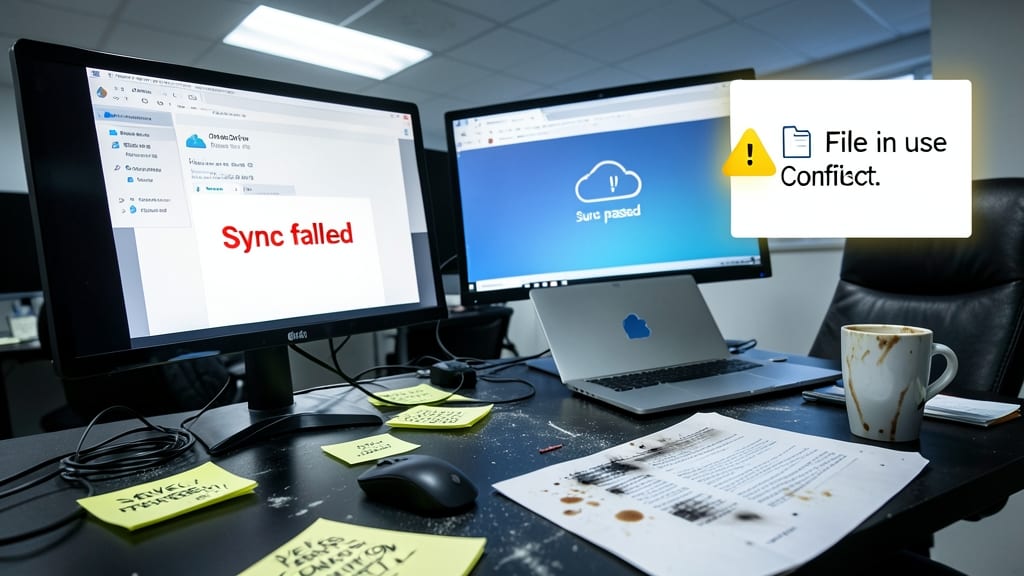
When your critical work files vanish or get locked in version conflicts, cloud storage sync errors can turn productivity into chaos. Whether it’s OneDrive’s "Files on this PC" disappearing, Google Drive’s "Sync paused" glitch, or Dropbox’s "File in use" conflicts, these issues are the bane of knowledge workers juggling multiple devices.
Start by pausing sync in the app’s settings and manually restoring files from the local cache (usually in %LocalAppData%\Microsoft\OneDrive or ~/Google Drive). For version conflicts, use OneDrive’s "Version History" or Google Drive’s "File Recovery" to revert to a stable draft. Dropbox’s "File Requests" feature can also help recover lost edits. Pro tip: Enable "Selective Sync" to avoid overwriting local changes during updates.
This guide is your lifeline for remote teams, freelancers, and office workers who rely on seamless cloud access. No more lost work—just quick fixes to keep your files flowing smoothly. 💻
Hardware Diagnostic Tools for IT Teams
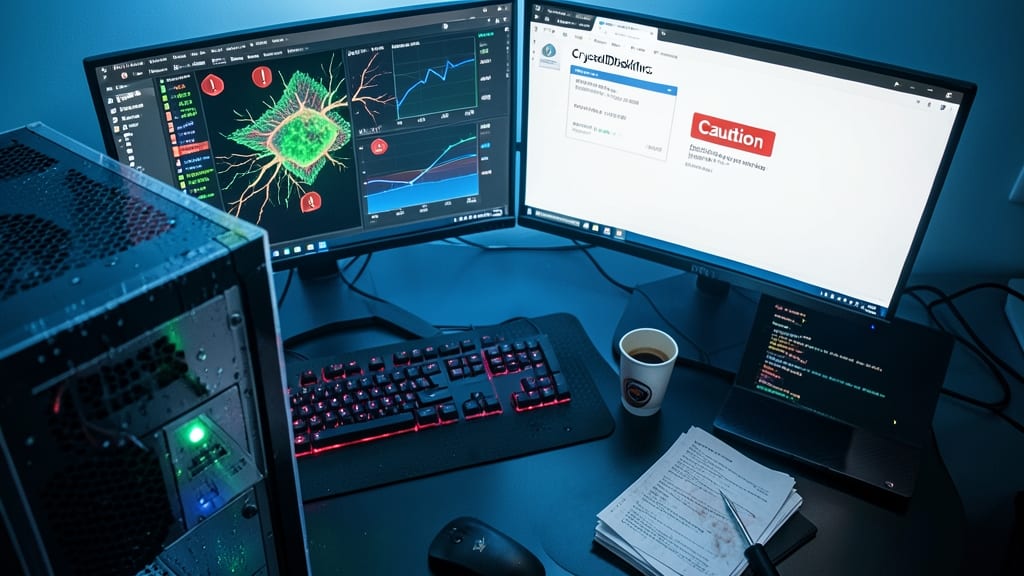
When hardware failures strike, IT teams lose hours chasing symptoms instead of solving problems. HWiNFO and CrystalDiskInfo turn guesswork into actionable diagnostics, letting you catch failing drives, overheating CPUs, or memory leaks before they escalate into costly downtime.
Start with HWiNFO—its real-time sensor monitoring tracks voltages, temperatures, and fan speeds across 300+ hardware models, while the SMART data feature flags failing HDDs/SSDs months before they crash. For storage-specific issues, CrystalDiskInfo provides detailed health reports with ATA/SATA command translation, making it easier to interpret SMART attributes like reallocated sectors or pending sectors.
These tools are perfect for help desk technicians and sysadmins managing fleets of machines, where proactive diagnostics prevent "the printer is on fire" calls. Pair them with Windows Event Viewer for a complete hardware health picture. 💻