
PowerPoint
High school students looking to boost their grades and showcase creativity can leverage Microsoft Office tools in powerful ways. These 10 standout projects demonstrate real-world skills while impressing teachers with polished, professional-quality work.
Interactive Classroom Timeline Using PowerPoint Morph

Turn static history lessons into dynamic storytelling with a PowerPoint Morph timeline that brings events to life. This project isn’t just about dates—it’s about mastering smooth animations, visual hierarchies, and teacher-ready templates that make complex topics unforgettable.
Start by organizing key events in a chronological slide deck, then use Morph transitions to seamlessly animate between eras (e.g., fading from the Renaissance to the Industrial Revolution). Add icons, color coding, and embedded media (like short video clips or audio clips of speeches) to reinforce learning. The Design tab’s built-in themes ensure professional polish, while hyperlinks let users jump between related topics—perfect for interactive classroom use.
Ideal for history buffs or English students analyzing literary periods, this project doubles as a skill-building exercise in animation and research. Your timeline could even become a reusable teaching tool for your teacher’s future classes! ⚡
Digital Yearbook with Excel and Publisher
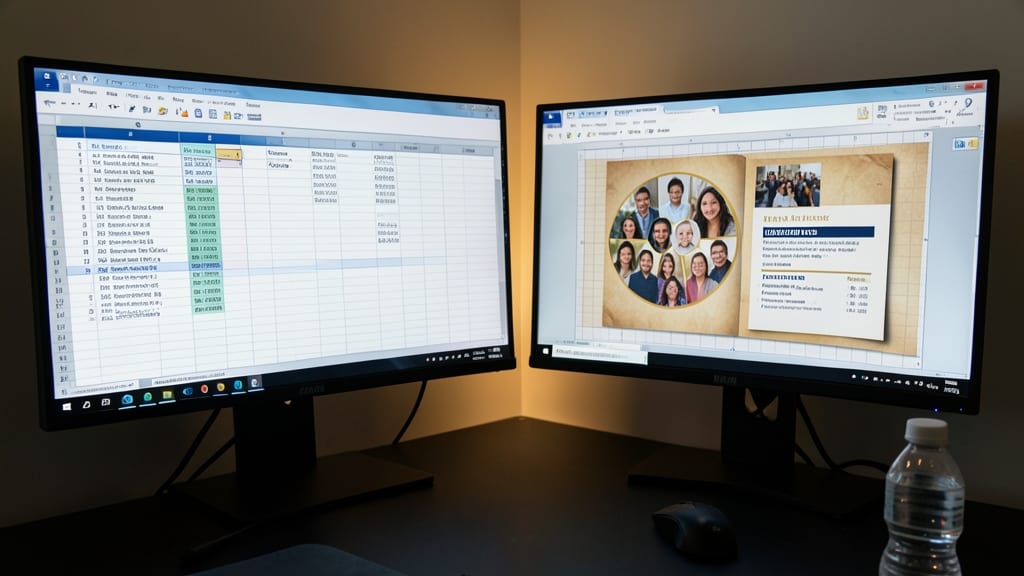
Skip the glue and paper—your yearbook can go digital with a sleek, interactive layout using Excel and Publisher. This combo lets you organize student data (names, grades, photos) in a spreadsheet, then automatically pull it into a magazine-style design with auto-generated tables of contents and customizable templates. No more handwritten entries or last-minute formatting disasters!
The magic happens when you use Excel’s data import to populate Publisher’s design elements. Add photo galleries, year-in-review sections, and even interactive hyperlinks to student bios. Publisher’s drag-and-drop tools make it easy to adjust layouts, while Excel’s sorting filters keep your data spotless. Bonus: Embed a digital guestbook using Word forms for a modern twist.
Perfect for student council members, journalism clubs, or yearbook committees—this project proves you can merge tech skills with creativity. Teachers will love the professional polish, and you’ll have a digital keepsake to share with classmates. 💻
Science Lab Report with SmartArt Diagrams

Turn your next chemistry or physics lab report into a visual masterpiece using SmartArt diagrams in Word. Instead of scribbling procedures on paper, you can create clear, professional flowcharts that break down complex experiments—like reaction pathways or circuit diagrams—with just a few clicks.
Start with pre-built SmartArt templates (process, cycle, or hierarchy) to map out your lab steps. Add icons and shapes to label equipment, then use color coding to highlight key variables. The result? A report that’s not just readable but engaging—teachers will notice how your data visualization skills elevate your work beyond the basics.
Perfect for STEM students who want to stand out in biology, engineering, or computer science classes. Your lab report will look like it came from a professional research journal! ✨
Personal Budget Tracker Using Excel PivotTables

Turn financial stress into a skill-building project with a personal budget tracker built entirely in Excel. This isn’t just about balancing numbers—it’s about mastering PivotTables, learning real-world financial concepts, and creating a dynamic tool that teachers in business or economics classes will actually use.
Start by organizing income and expenses in a clean spreadsheet, then transform raw data into interactive charts with just a few clicks. The PivotTable feature lets you instantly filter by categories (like groceries or utilities) to spot spending trends, while conditional formatting makes over-budget items stand out. Add a monthly summary dashboard with formulas to calculate savings rates—no coding required!
Perfect for students who want to impress while learning practical skills. Whether you’re tracking your own allowance or simulating a family budget for class, this project proves Excel can do more than just crunch numbers—it can teach financial confidence. 💡
Book Trailer Presentation with PowerPoint Media
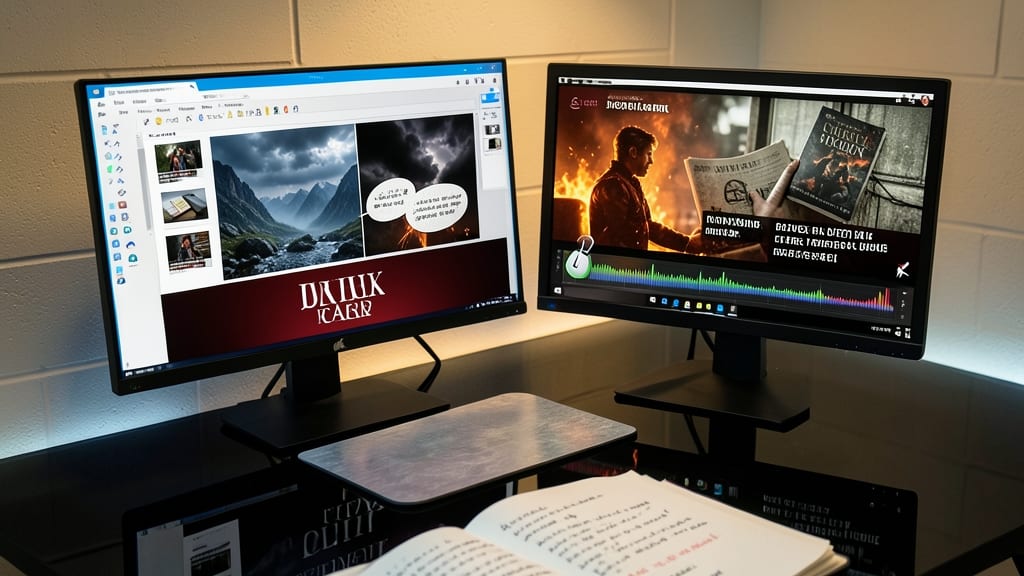
Turn a simple book report into a cinematic trailer that hooks your teacher from the first slide. Using PowerPoint’s audio, video, and transition tools, you can craft a dynamic 2-minute summary that blends text, music, and visuals—just like a Hollywood preview.
Start with key scenes (e.g., dramatic quotes, character moments) as slides, then add background music from YouTube’s free audio library or record your own narration. Use Morph transitions to smoothly shift between scenes, and embed short video clips (even phone footage) to bring the story to life. The Design tab lets you pick sleek templates, while transtions like "Zoom" or "Morph" keep it engaging.
This project shines for English or media arts classes, where storytelling meets tech. It’s a fresh twist on book reports that proves you can stand out without extra software—just PowerPoint’s built-in tools. ✨
Classroom Survey Analysis with Word and Excel
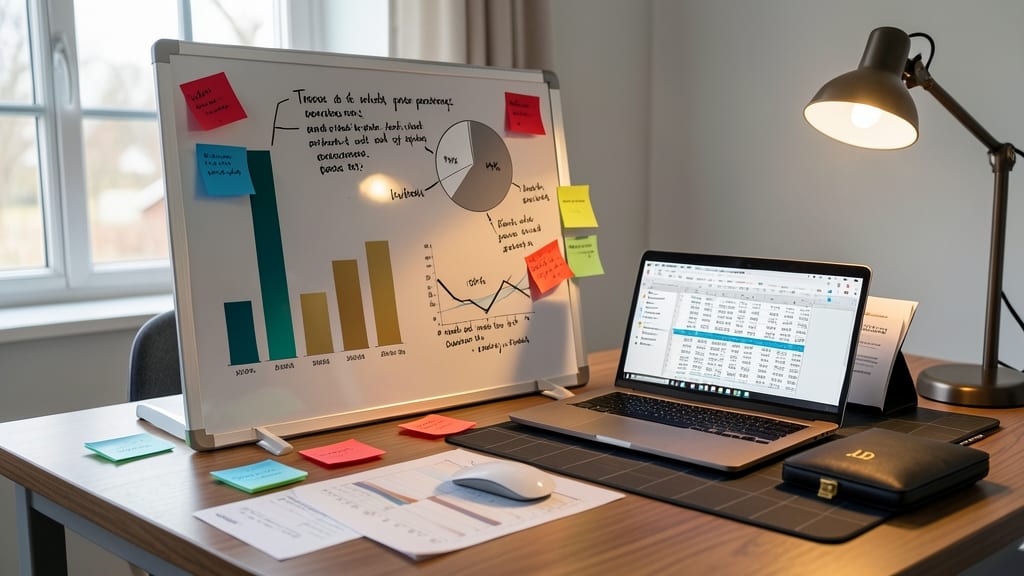
Turn raw survey data into compelling insights with a Classroom Survey Analysis project that blends research and visual storytelling. This isn’t just about crunching numbers—it’s about uncovering trends, presenting them clearly, and making your findings unforgettable for teachers and peers alike.
Start by designing your survey in Word (using tables for clean layouts) or collecting responses digitally, then import the data into Excel to create dynamic charts and pivot tables. Highlight key findings with embedded Excel graphs directly in your Word report, and use conditional formatting to emphasize patterns. For extra polish, add a summary infographic using Word’s SmartArt tools to visually represent your conclusions.
This project shines brightest for students in social studies or psychology, where data-driven discussions are key. Whether you’re analyzing peer opinions on school policies or studying behavioral trends, this combo of Word’s writing power and Excel’s data magic turns a simple assignment into a standout academic showcase. ✨
Math Project with 3D Models in Word
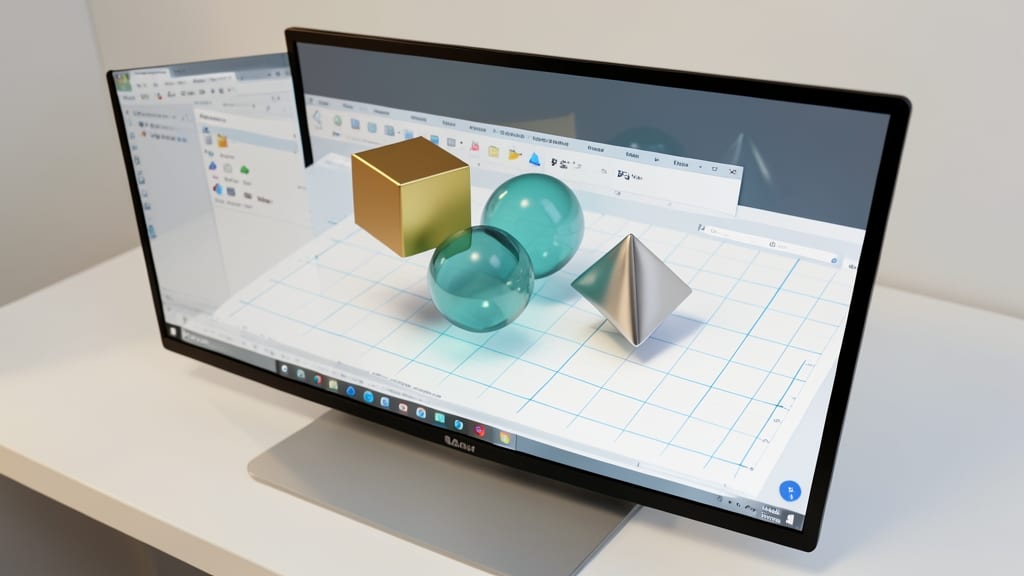
Struggling to explain complex math concepts on paper? Word’s 3D Models feature lets you insert interactive geometric shapes—like cubes, spheres, and pyramids—directly into your documents. No design skills required: just drag, rotate, and resize shapes to visualize theorems or algebraic proofs in 3D.
Start with the Insert > 3D Models tool to browse pre-built shapes or upload your own. Combine them with equations (using the Equation tool) to create dynamic visuals—like plotting a parabola on a 3D plane. The best part? You can embed these models in presentations or handouts, making your work unforgettable. Teachers love creative problem-solving!
Perfect for geometry, calculus, or algebra students who want to stand out without coding or expensive software. Just add a short explanation, and you’ve got a battle-tested setup. ✨
Event Planning Proposal with Publisher Templates
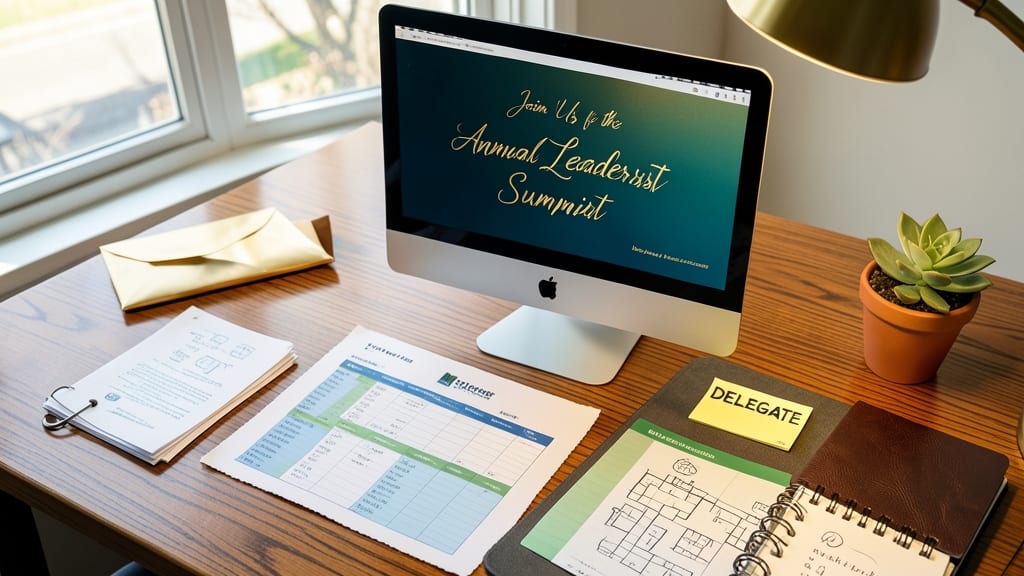
Want to turn a classroom assignment into a real-world leadership challenge? A Publisher-based event planning proposal lets you design every detail—from invitation layouts to budget spreadsheets—while practicing skills future employers value.
Start with pre-built templates for timelines, seating charts, and vendor contracts, then customize colors and fonts to match your event’s theme. The budgeting tools let you track expenses in real time, while the drag-and-drop schedule builder keeps everything organized. You’ll even create a mock press release to practice professional communication.
Perfect for business or leadership classes, this project proves you can handle logistics like a pro—whether planning a school dance or a corporate retreat. ✨
Newsletter for School Club with Outlook and Word

Want to turn your school club into a well-organized, professional force? A newsletter designed in Word and sent via Outlook lets you showcase your club’s personality while demonstrating real-world communication skills to teachers.
Start by designing your newsletter in Word using templates like Modern or Vibrant—add club logos, color schemes, and sections for updates, events, and member spotlights. Then, use Outlook’s email marketing tools to format it as a professional HTML email, ensuring it looks polished on any device. The built-in tracking in Outlook lets you see who opens it, making it easy to measure engagement and adjust future content.
Perfect for student council members, debate teams, or art clubs, this project highlights collaboration (design + writing) and tech skills—something college applications love to see. ✨
Portfolio Showcase Using OneNote and PowerPoint
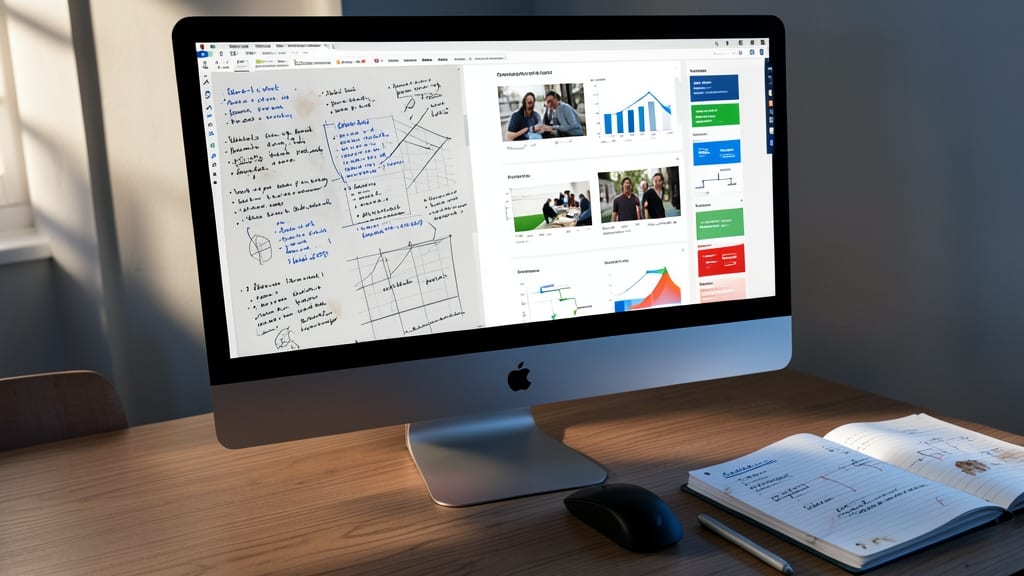
Need a portfolio that’s more than just a folder of files? Combine OneNote’s handwritten notes and sketches with PowerPoint’s polished slides to create a dynamic, professional showcase. This hybrid approach lets you organize rough drafts, brainstorming sessions, and final projects in one seamless digital space.
Start by using OneNote’s freeform canvas to sketch ideas, jot down references, or outline projects—then embed those pages directly into PowerPoint slides for a behind-the-scenes look. Add interactive links between slides and notes, and use PowerPoint’s Morph transitions to highlight key moments in your work. The result? A portfolio that tells your story with both creativity and structure.
Perfect for artists, writers, or career prep students, this project proves you can think critically and present professionally. It’s the ultimate way to show your process—not just the final product. ✨