
Coding
Struggling with messy text data in Excel? These 10 essential text functions will transform raw data into clean, professional formats with simple formulas. Perfect for analysts, marketers, and anyone working with unstructured information.
Concatenate Function for Combining Text Fields
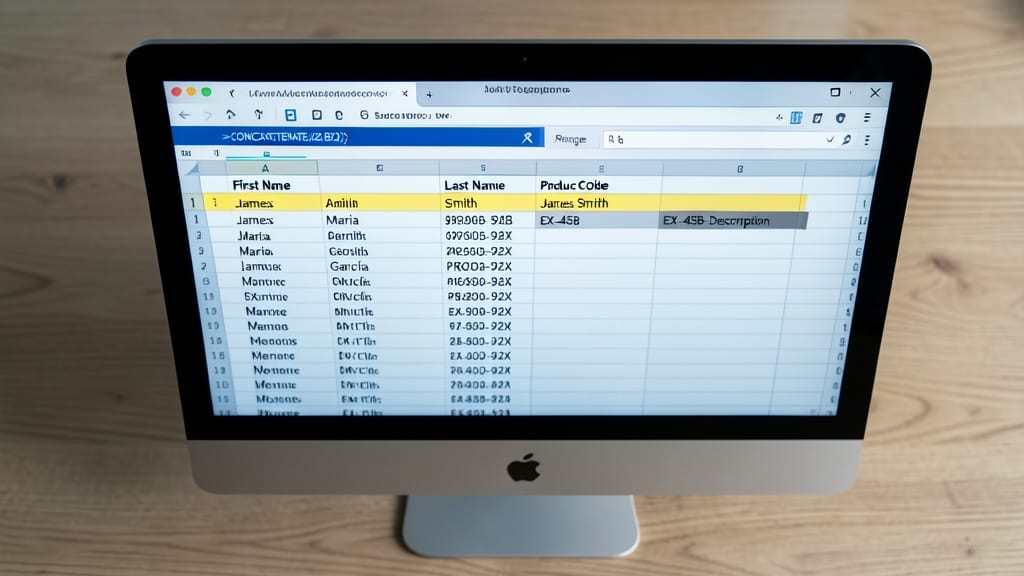
Tired of manually copying and pasting data from multiple columns into a single cell? The CONCATENATE function in Excel is your time-saving solution. Whether you're combining first and last names, merging product codes with descriptions, or assembling full addresses, this function streamlines the process with just a few clicks.
With CONCATENATE(A1, " ", B1), you can merge text from two or more cells while adding custom separators like spaces, commas, or hyphens. For example, if cell A1 contains "John" and B1 contains "Doe," the formula will output "John Doe." This function works seamlessly in Excel 365, 2021, and 2019, making it a staple for data organization. Plus, it’s perfect for creating professional-looking reports or cleaning up messy datasets.
Marketers, analysts, and small business owners will find this function indispensable for maintaining clean, organized data. It’s the go-to tool for anyone who wants to automate repetitive tasks and keep their spreadsheets polished. ✨
Text to Columns for Splitting Data
Tired of manually splitting comma-separated values or parsing log files into columns? Excel’s Text to Columns tool automates this tedious task in seconds—no manual copying or pasting required.
Access it via Data > Text to Columns, where you can choose delimiters (commas, tabs, semicolons) or fixed-width options. It handles CSV imports, parsed logs, or even messy exported data with ease. For example, turn "John,Doe,New York" into three clean columns instantly. Works seamlessly with Excel 365, 2021, and 2019, ensuring compatibility across versions.
This is a game-changer for data analysts, IT admins cleaning logs, or small business owners importing vendor files. ⚡
LEFT, RIGHT, and MID Functions for Extracting Substrings
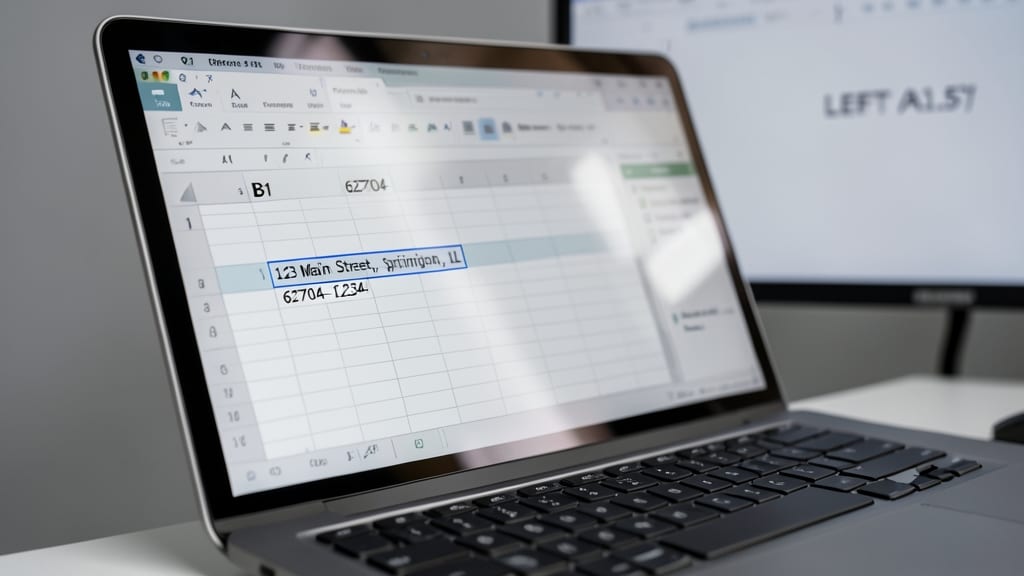
Need to pull just the ZIP code from a full address or extract a product model number from a long code string? The LEFT, RIGHT, and MID functions let you grab exactly what you need without manual copying—saving hours on data cleanup.
Use LEFT(A1,5) to extract the first 5 characters (like a ZIP code), RIGHT(A1,4) for the last 4 (e.g., year from a timestamp), or MID(A1,7,3) to pull a specific segment (like a middle section of an ID). These functions work with any text length and handle dynamic data automatically when referenced.
Perfect for log analysts, inventory managers, or anyone dealing with structured but messy text—like parsing serial numbers, phone prefixes, or formatted codes. ⚡
UPPER, LOWER, and PROPER Functions for Text Formatting
Tired of inconsistent text ruining your reports or databases? The UPPER, LOWER, and PROPER functions instantly standardize text cases with just one formula—no manual editing required. Whether you're dealing with customer names, product listings, or compliance documents, these functions ensure uniformity across your dataset.
Use UPPER(A1) to convert all text to uppercase (e.g., "john doe" → "JOHN DOE"), LOWER(A1) for lowercase (e.g., "JOHN DOE" → "john doe"), or PROPER(A1) to capitalize the first letter of each word (e.g., "john doe" → "John Doe"). They’re lightweight, fast, and work seamlessly with large datasets—ideal for audits or automated workflows.
Perfect for marketers formatting email lists, analysts cleaning datasets, or anyone enforcing brand consistency across documents. These functions save time while ensuring professional, polished results every time. ✨
TRIM Function for Removing Extra Spaces

Ever wasted hours manually fixing extra spaces in Excel data that throw off calculations or mail merges? The TRIM function is your lifesaver—it automatically removes leading, trailing, and extra spaces between words in a single step.
With just =TRIM(text), you can instantly clean up data like this: " John Doe " becomes "John Doe". It’s especially useful for databases, mail merge templates, or any scenario where hidden spaces cause errors in formulas or exports. Unlike manual fixes, TRIM handles all spaces—even those you can’t see—saving you time and frustration.
Perfect for analysts, marketers, or anyone dealing with imported data—just apply it to a cell or range to instantly tidy up messy text. ⚡
SUBSTITUTE Function for Replacing Text

Tired of manually editing thousands of cells to fix typos, outdated codes, or inconsistent abbreviations? The SUBSTITUTE function lets you replace specific text patterns across entire datasets with a single formula—no copy-pasting required.
With syntax like =SUBSTITUTE(text, oldtext, newtext, [instancenum]), you can swap words, symbols, or even partial matches. Need to update ProjectX to Project2024 in 100 cells? Done in seconds. The optional instancenum parameter even lets you replace only the first, second, or nth occurrence of a match—great for targeted fixes.
This is the go-to tool for developers updating legacy code snippets, marketers standardizing product names, or anyone cleaning up messy imports. Try it on your next dataset—you’ll wonder how you ever lived without it. ✨
FIND and SEARCH Functions for Locating Text

When you need to hunt down specific text within a cell—whether validating emails, debugging logs, or extracting hidden details—FIND and SEARCH are your Swiss Army knives. Unlike functions that modify text, these locate it precisely, returning the position of a substring or even its exact match.
The FIND function demands case-sensitive matches (e.g., FIND("A", "Apple") returns 1, but FIND("a", "Apple") errors), while SEARCH ignores case (e.g., SEARCH("a", "Apple") returns 2). Both support wildcards like and ? for pattern matching. For example, SEARCH("", "Excel 2024") locates the first character’s position, while FIND("@", A1) pinpoints email domains in messy datasets.
These functions shine for data auditors verifying formats (e.g., checking if all emails contain "@") or developers parsing logs for error codes. Pair them with LEFT/RIGHT to extract substrings dynamically—like pulling domain names from full email addresses. ✨
CLEAN Function for Removing Non-Printable Characters
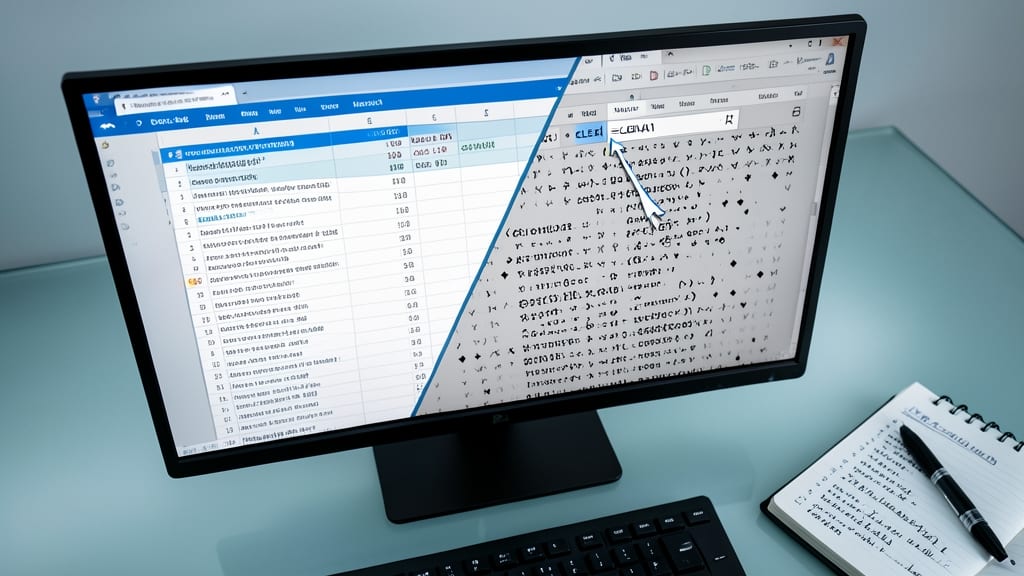
Ever pasted text from a website or PDF into Excel, only to find your formulas acting up because of hidden characters? The CLEAN function is your secret weapon against invisible culprits like paragraph marks (¶), line breaks (¬), or other non-printable characters that sneak into your data.
This function scans text and removes ASCII codes 0-31 (control characters) and 127 (the DEL character), which often cause errors in calculations or formatting. Simply use =CLEAN(text)—no extra arguments needed—and watch it purge those pesky hidden characters. It’s the last step for data imported from legacy systems or copied from unstructured sources.
Perfect for data analysts cleaning up CSV imports or marketers standardizing copied content. ⚡
TEXTJOIN Function for Advanced Text Combination
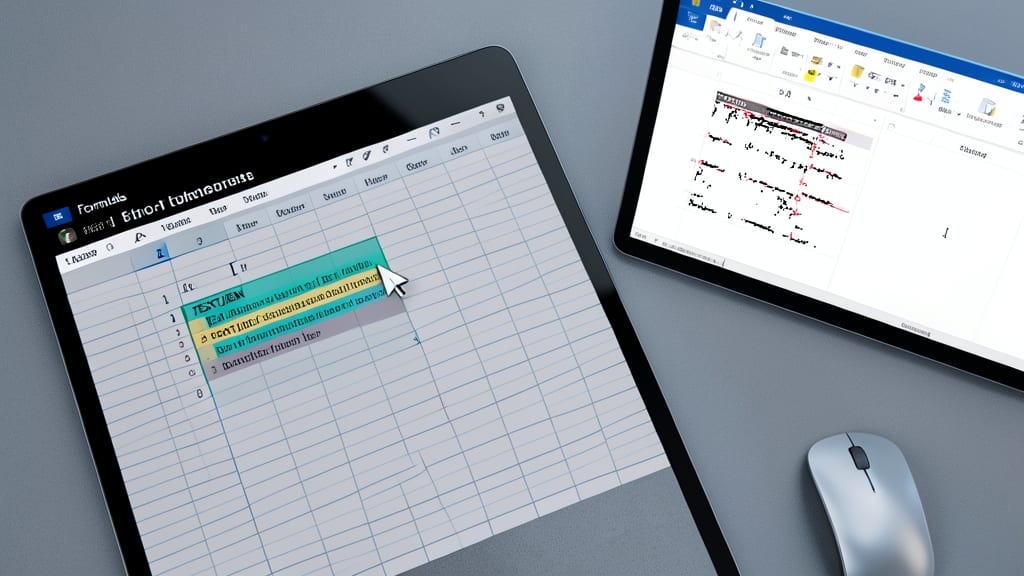
Tired of messy concatenations where empty cells break your formulas? TEXTJOIN is Excel’s modern powerhouse for combining text with precision—no more workarounds or errors.
This function lets you merge ranges with custom delimiters (like commas or pipes) and a ignore_empty switch to skip blank cells. For example, =TEXTJOIN(", ", TRUE, A1:C1) combines three cells into "Apple, Banana, Cherry" while ignoring any empty entries. It’s perfect for generating lists, building dynamic reports, or cleaning up data with conditional logic—all in one step.
Data analysts and report generators will love how it handles dynamic ranges and complex separators without extra helper columns. ⚡
CHAR Function for Inserting Special Characters

Need to insert a tab, line break, or currency symbol in Excel without typing it manually? The CHAR function lets you generate any ASCII character by its code—perfect for automating invoices, reports, or templates where formatting matters.
Simply use =CHAR(number), where the number corresponds to the ASCII code. For example, CHAR(10) inserts a line break, CHAR(9) adds a tab, and CHAR(36) displays a dollar sign ($). Combine it with other functions (like CONCATENATE) for dynamic formatting—no copy-pasting special characters required.
Accountants, marketers, and anyone generating structured documents will love this for zero-config formatting. ✨