
Software
Microsoft 365 is packed with hidden features that can transform your workflow. These 10 efficiency best practices will help you automate repetitive tasks, streamline collaboration, and reclaim hours each week—without sacrificing quality or creativity.
Master Quick Access Toolbar Customization

If you’re tired of hunting through menus or scrolling endlessly to find your most-used commands in Word, Excel, or PowerPoint, the Quick Access Toolbar (QAT) is your secret weapon. This customizable ribbon lets you pin frequently used tools—like Save, Undo, or Track Changes—right where you need them, cutting down on repetitive clicks and speeding up workflows by 10+ minutes per hour.
To get started, right-click anywhere on the toolbar and select Customize Quick Access Toolbar. From there, you can add commands from the Recent Commands list or browse all categories in the All Commands dropdown. Pro tip: Use the dropdown arrow on the toolbar to quickly access your pinned commands from any Office app. For power users, you can even add macros, groups of commands, or keyboard shortcuts to streamline complex tasks.
This is a game-changer for freelancers, project managers, or anyone drowning in manual tasks. Spend 5 minutes setting it up once, and you’ll save hours every week—no more menu diving or muscle memory wasted on scrolling. ⚡
Use Outlook Quick Steps for Email Automation

If you’re spending more time managing emails than actually reading them, Outlook Quick Steps could be your lifeline. This underrated feature lets you turn repetitive actions—like flagging, categorizing, or forwarding emails—into single-click commands, cutting your inbox time by 30% or more with minimal setup.
Create custom steps like “Flag as High Priority + Move to Follow-Up” or “Forward to Manager + Add ‘Urgent’ Tag” using the built-in templates or design your own. The magic happens with conditional logic (e.g., “If sender is ‘Client,’ flag and assign to category”), and you can even nest steps for complex workflows. Best of all, these actions work across Outlook desktop and web—no mobile support, but still a powerhouse for office-bound professionals.
Perfect for customer support teams routing tickets, sales reps prioritizing leads, or executives decluttering overflowing inboxes. Start with one step to automate your biggest time-waster—you’ll wonder how you ever lived without it. ✨
Leverage Power Query for Data Cleanup
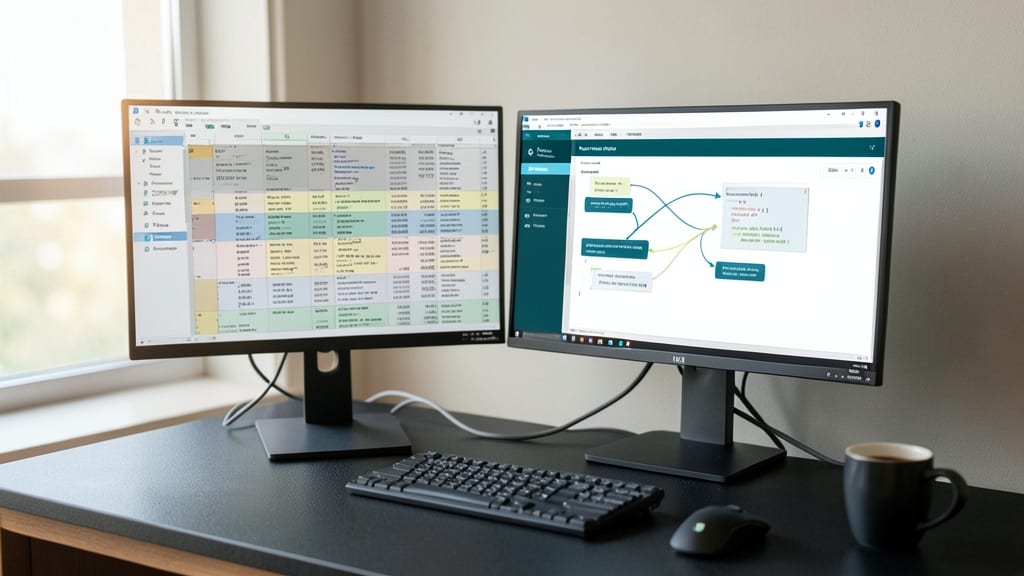
Tired of spending hours scrubbing data from mismatched spreadsheets? Power Query—built into Excel and Power BI—lets you clean, merge, and transform raw data with intuitive drag-and-drop tools. No coding required.
Use its M-code engine to handle everything from removing duplicates to splitting columns or merging tables from multiple sources. The query editor lets you preview changes instantly, and you can save steps as reusable functions. For analysts, it’s a game-changer when dealing with CSV exports, API responses, or legacy databases that lack consistency.
Perfect for finance teams reconciling reports or marketers analyzing cross-platform campaign data. Once set up, your transformations run in seconds—no more manual copy-pasting or VLOOKUP nightmares. ✨
Enable Focus Mode in Teams

Struggling to focus in a world of constant pings and pop-ups? Microsoft Teams’ Focus Mode lets you silence all non-essential notifications—except calls and messages from your favorites list—so you can finally tackle that project without interruptions.
To enable it, click your profile picture, select Focus Mode, then choose between Do Not Disturb (mutes everything) or Away (shows a custom message). You can even set a scheduled timer for automatic on/off cycles, perfect for blocking distractions during meetings or deep work sessions. The best part? Your team won’t see you as offline—just undisturbed. 💻
This is a game-changer for remote workers or anyone in an open-office environment where collaboration tools constantly compete for attention. Give it a try during your next focused work block! ✨
Automate Repetitive Tasks with Office Macros

Tired of spending hours formatting the same reports or generating invoices from scratch? Office Macros let you record a series of actions once and replay them instantly—think of it as your personal productivity assistant for Excel, Word, or Access.
With VBA (Visual Basic for Applications), you can automate everything from applying consistent styles to pulling data between sheets or generating multi-page reports with a single click. The best part? No coding expertise is required—just hit Record Macro, perform your tasks, and let Office handle the rest. For advanced users, you can even schedule macros to run automatically at specific times.
Accountants crunching numbers or marketers assembling monthly reports will see the biggest time savings. Start with simple tasks like auto-filling templates or summarizing data ranges, then gradually tackle more complex workflows. ⚡
Use OneDrive Smart Sync for Offline Access
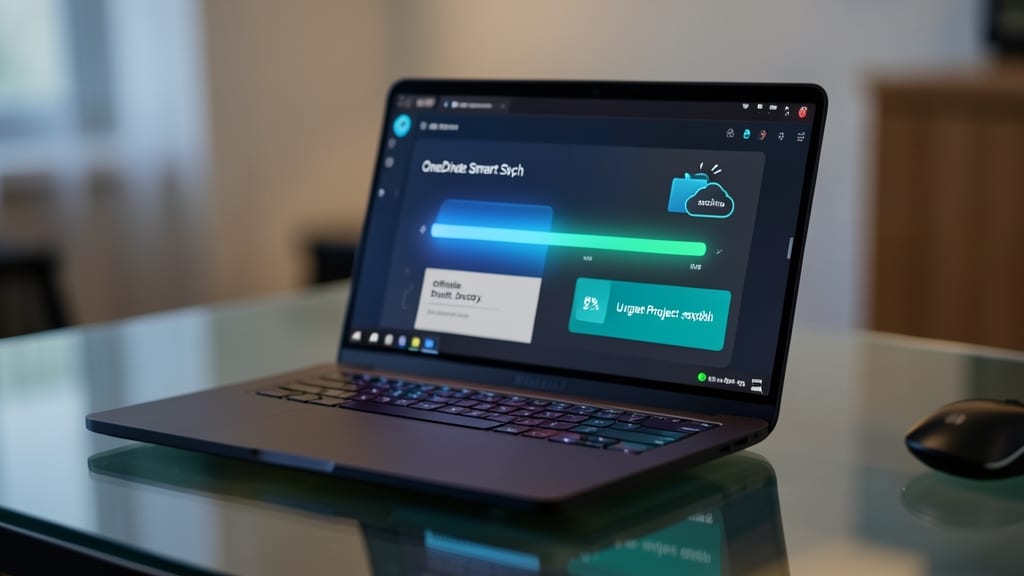
If you’ve ever struggled with slow file access on a laptop with limited storage—or worse, been stuck without critical documents while offline—OneDrive Smart Sync is your solution. This feature lets you work seamlessly with files stored in the cloud while keeping your device’s storage lean and performance fast.
With Smart Sync, you choose which folders stay fully synced to your device and which remain accessible only when online. Files marked as "Available online" open directly from OneDrive without consuming local space, yet edits sync automatically when you reconnect. The Files On-Demand feature even lets you search and open files without downloading them—ideal for 50GB+ presentations or multi-gigabyte datasets that would otherwise bog down your system.
This is a game-changer for field technicians, remote consultants, or frequent travelers who need real-time access to documents but can’t afford the storage hit. Set it up in seconds via the OneDrive desktop app, and never worry about file availability again. ✨
Collaborate with Real-Time Co-Authoring

Ever wasted time waiting for feedback on a shared document? Real-time co-authoring in Word and Excel lets you and your team edit the same file simultaneously—no more version chaos or back-and-forth emails.
With Word, see live cursors and avatars for collaborators, plus comment threads tied to specific text. Excel’s co-authoring adds real-time formula updates and shared cell editing, so everyone stays on the same page (literally). Works seamlessly across Windows, Mac, and mobile, with changes syncing instantly—even for files stored in OneDrive or SharePoint.
Perfect for remote teams, legal firms, or marketing agencies drafting reports under tight deadlines. Say goodbye to "finalversionfinal2.docx" headaches. ✨
Set Up Email Rules for Auto-Sorting

Drowning in a sea of emails? Outlook’s email rules let you set up zero-effort sorting—like automatically filing newsletters into a "Reading Later" folder or stamping "Urgent" on high-priority messages. This isn’t just about decluttering; it’s about reclaiming 10-15 minutes per day by letting Outlook handle the busywork.
Create rules based on sender, keywords, or size—for example, auto-delete receipts under 5KB or move client updates to a dedicated folder. Pro tip: Use "stop-processing more rules" to avoid conflicts, and test with a few rules first. For support teams, route helpdesk tickets to a shared inbox folder instantly.
This is your secret weapon if you’re juggling 100+ emails daily—whether you’re an executive prioritizing inbox zero or a support agent drowning in tickets. ⚡
Use PowerPoint Presenter View

Ever walked into a presentation only to realize you forgot your notes or lost track of time? PowerPoint Presenter View solves this by giving you a private dashboard with speaker notes, timers, and slide previews—while your audience sees only your slides.
Enable it by clicking Slide Show > Presenter View before starting. You’ll see your notes on one screen, the current slide on another, and even a built-in timer to keep you on schedule. The laser pointer tool and slide navigation make transitions seamless, while the audience view ensures they never see your prep work.
This is a game-changer for trainers, sales teams, and educators who juggle complex content. No more fumbling with paper notes or guessing how much time you’ve spent on each slide. ⚡
Enable Microsoft Flow for Cross-App Workflows
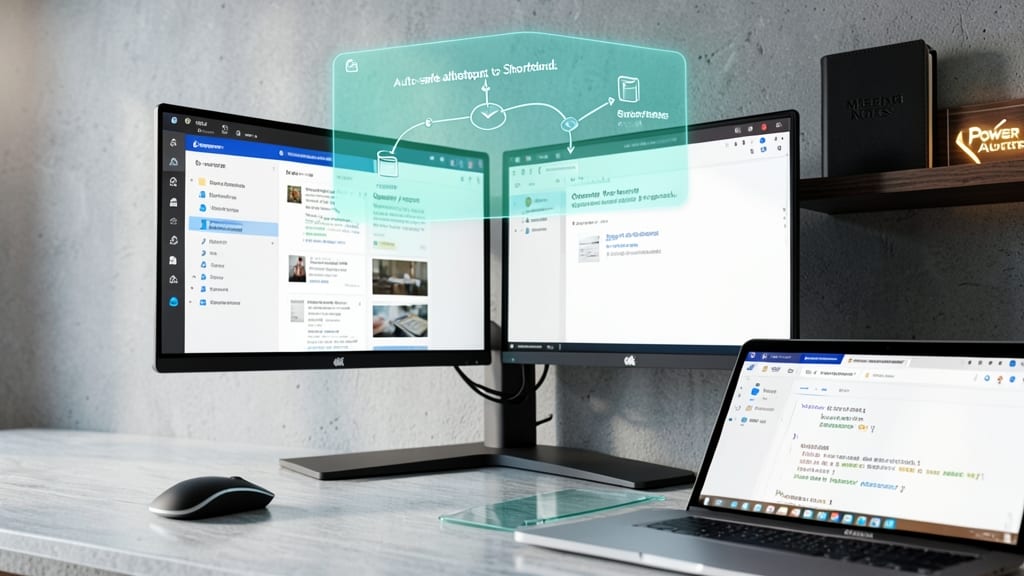
Tired of manually shuffling data between SharePoint, Outlook, and Teams? Microsoft Power Automate (formerly Flow) bridges these apps seamlessly, turning multi-step approvals into zero-click workflows. For example, auto-save email attachments to SharePoint when a new message arrives—no copy-pasting required.
The platform offers pre-built templates for common tasks (like sending Slack alerts for new approval requests) and AI-powered suggestions to refine logic. With 200+ connectors, you can even tie in third-party tools like Google Drive or Salesforce. Plus, the mobile app lets you monitor workflows on the go.
Ideal for HR teams managing onboarding or IT admins handling ticket routing, Flow cuts manual work by 60%+ while keeping audit trails intact. 💻